How to view your Cloudflare dashboard on iPhone
Guide / Kintoun for iOS
When you are away from your computer, a quick infrastructure check should fit on your phone. Kintoun is a native Cloudflare dashboard app for iPhone: connect your account, choose a domain, and inspect its DNS records, traffic analytics, and security events.
This guide walks through a first account connection and three checks you can make from your iPhone.
1. Connect your Cloudflare account
You need an iPhone, a Cloudflare account, and a user API token with access to the resources you want to view.
- Download Kintoun from the App Store.
- In the Cloudflare dashboard, open My Profile → API Tokens → Create Token. Create a custom token, choose the permissions for your intended checks, and scope it to the accounts or zones you need. For viewing data, choose Read access where available. Follow Cloudflare’s token creation instructions for the current options.
- Add the token in Kintoun, then browse your accounts and zones. A zone is the domain whose DNS and traffic data you want to inspect.
Kintoun requests infrastructure data directly from Cloudflare’s APIs. For details about credentials and data handling, read the privacy policy.
2. Inspect Cloudflare DNS records on iOS
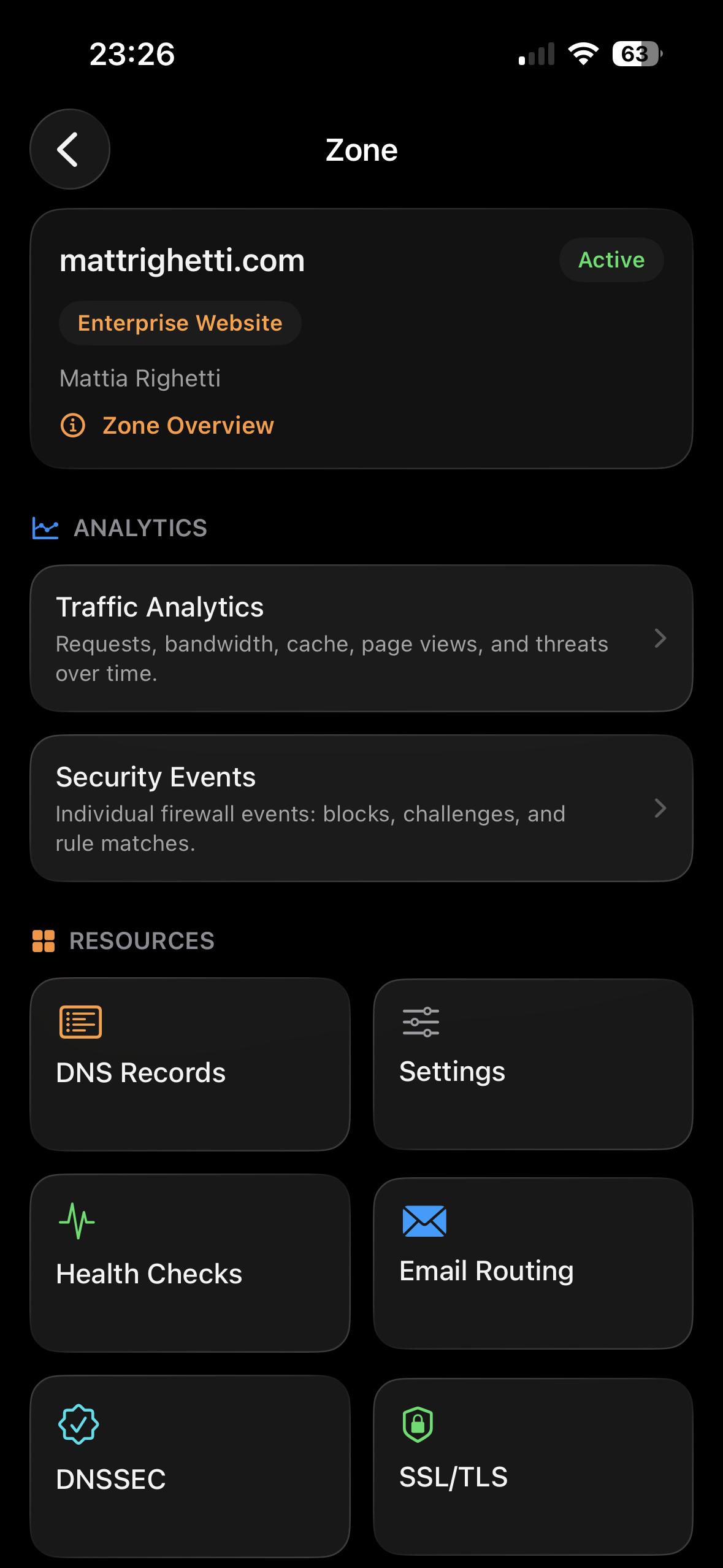
Select your domain and open its DNS records. Kintoun supports browsing records such as A, AAAA, CNAME, MX, and TXT.
For example, when checking a subdomain, find its record and inspect the name, type, and value. This lets you check the configuration exposed by your Cloudflare account while you are away from a desktop.
Keep the question specific: “What record is configured for this hostname?” is a different check from whether a service is currently reachable.
3. Check traffic analytics from your iPhone
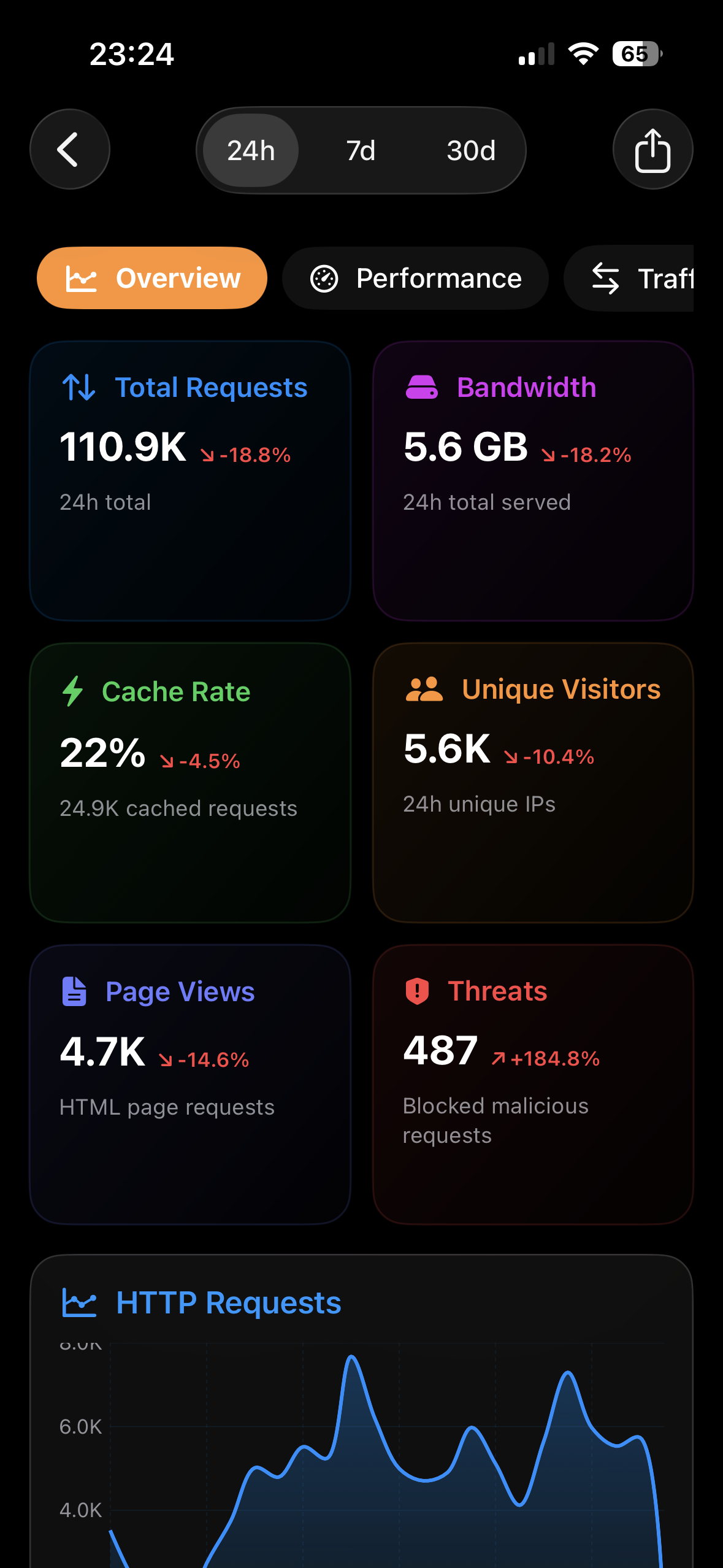
Open analytics for your zone to review requests, bandwidth, and cache performance. Kintoun uses Cloudflare’s GraphQL API for traffic analytics.
A useful first pass is to look for a change in request volume, then check bandwidth and cache performance alongside it. Before drawing a conclusion, confirm the account, domain, and time period you are reviewing.
4. Review Cloudflare security events
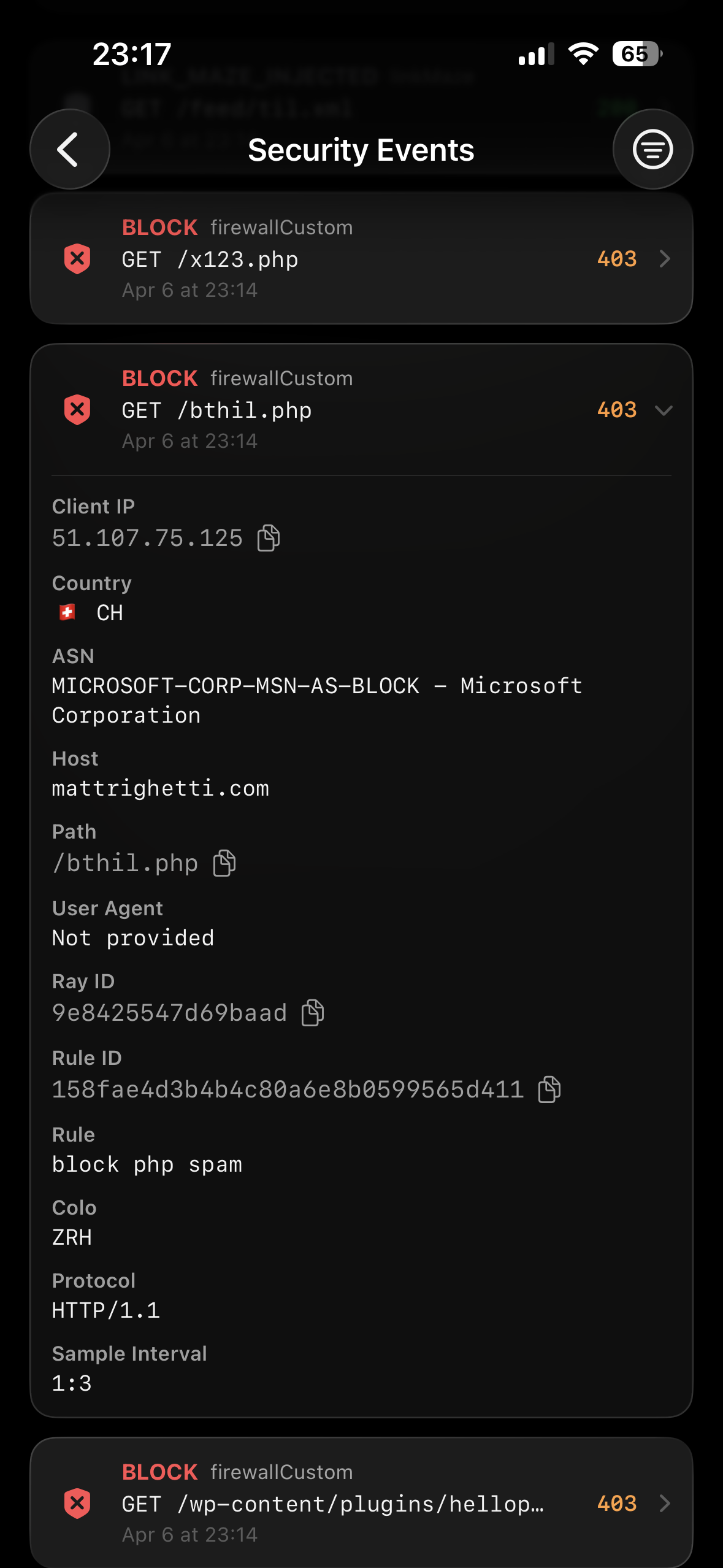
Open security events for the zone to inspect firewall actions and request details, including IP addresses, countries, and rule information.
If someone reports a blocked request, start with the affected domain and look for a matching event. Compare the event details with the reported request before deciding what to investigate next.
What if an account, zone, or chart is missing?
- Missing domain: check that the token includes the intended zone and that you selected the right account.
- Permission error: a token can be valid without access to every service. Review its permissions for the resource you are opening.
- Unavailable analytics: check analytics permissions, your selected time range, and whether Cloudflare makes the requested data available for your plan.
If you still need help, contact the developer with your app version, iOS version, and the screen where the problem occurs. Leave API tokens out of your message.
Your Cloudflare accounts, on your iPhone.
Explore the Kintoun iOS app and its features, or download it to connect your account.
Download for iPhone